
The View
View panes 
or via menu buttons:
– 2D-View (Room)  for creation, movement and deletion of systems (Shortcut: ‘F2’)
– 3D-View  for creation, movement and deletion of details (Shortcut: ‘F3’)
The room processing
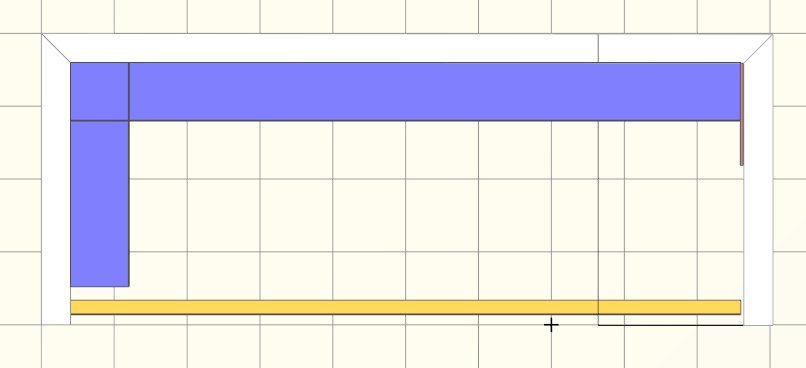
On starting the rpDesigner and at the creating of new projects there will be shown at first the room processing view (2D-View). The workspace shows up the center of that issue. You can edit the size and the grid via contextmenu to right-click on the workspace and select ‘Desktop’
In the room processing there can be performed following operations among others:
-
Create, move and delete walls
-
Create and delete sloping ceiling
-
Create, move and delete sliding doors
-
Create, move and delete interior systems
-
Create, move and delete decorations
-
Create, move and delete lights sources
You will get to room processing (2D-view) via F2 button or by main menu ‘View → room processing’. Alternate to that you can just click on the tab ‘Room’ further down.
The 3D-View
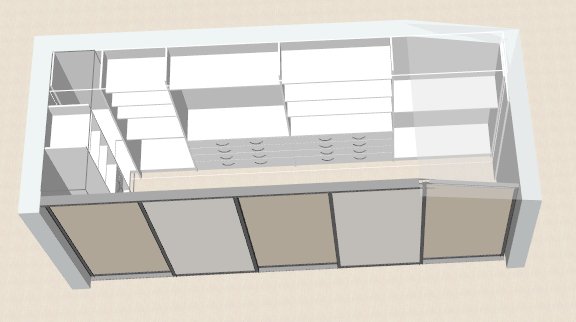
The 3D-View enables three-dimensional room impressions of room processing 2D-View created system. In that view the created systems can be modified in detail.
Following usual operations can be performed here:
-
Create, move and delete of panel-dividing rails
-
Create, move and delete glued dividing rails in sliding door systems
-
Positioning of diving rails in doors
-
Insert and delete handles in sliding door systems
-
Insert, move and delete shelves in interior systems
-
Insert, move and delete bottom panels in interior systems
-
Insert and delete socket panels in interior systems
-
Move and delete drawer in interior systems
-
Insert, move and delete accessoires in interior systems
-
Set up of the materials/ surfaces for walls, interior systems and sliding door systems
-
Insert, move and delete decorations
-
Insert, move and delete light sources
You will get to room processing (3D-view) via F3 button or by main menu ‘View → 3D-View’. Alternate to that you can just click on the tab ‘3D-View’ further down.
3D-Views
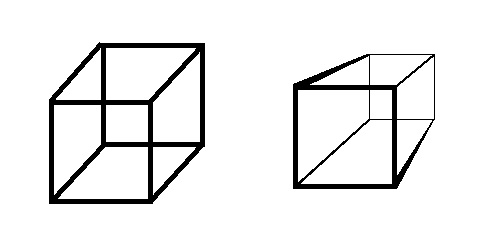
In the perspective view you will get a more realistic image/rendering, because at least on vanishing point is calculated. Additionally for most people the 3D-View is also more confortable to work with.
In the orthographic view all curves keep parallel. That view could be helpful at rpDesigner to insert elements and get at the same time an general overview.
Generally
-
In both views the prompt bar can be used for variously operations.
-
The current view can be switched with the key code Ctrl + Tab Key.