
Move element (with controller)

Some elements can be moved with the help of a controller (e.g. decorations and lights). To move an element first click on the move icon and then on the element to move.
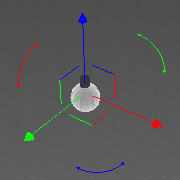
After selecting an element the controller, which can be used to move and/or rotate the element, will be displayed. The available movement vary from element to element. The controller will always be displayed with the same size regardless how far the selected element is away.
The three large arrows allow the movement along the main axis. The red arrow moves along the x-axis, green moves along the y-axis and blue along the z-axis.
Near the center of the controller there are three angles connecting two of the large arrows each. They allow movement on the primary planes. The red green corner moves on the xy-plane, so the height of the element above the ground remains unchanged. The red blue corner moves on the xz-plane and the green blue moves on the yz-plane.
At the outer area between the arrows are arcs, these allow rotating an element about the main axis. The red arc rotates about the x-axis, the green about the y-axis and the blue about the z-axis.
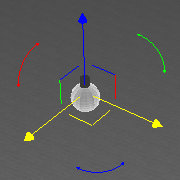
To move an element place the cursor above the part of the controller that represents the desired movement, click the left mouse button and move the element by moving the mouse to the desired position. Release the left mouse button to finish moving (which can then be followed by another movement) or press Escape to cancel the movement.
To rotate an element move the mouse in a circular motion as the arc indicates.
When moving the cursor over the controller the part that a left click would select is highlighted in yellow.
For the corners and arcs the main arrows that correspond to the movement are also highlighted.
Placement
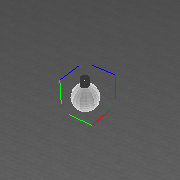
While holding the Ctrl-key placement of the element is activated. This way elements can be placed on the floor or on a table as well as positioned on a wall. In this mode only moving along the primary planes is available.
The red green corner will place the element down towards the ground (e.g. on the floor or a table). The other corners will place the element along a wall or any other upright element.
Placement is always done onto the element that is below the cursor. The view should be changes so that one is looking towards the surface on which the element should be placed(e.g. when placing something on the floor one should be looking down towards the floor).