
Edit languages and create translations
Introduction
rpDesigner has support for different languages. It is possible for you to change an existing translation or to add a new one. For such a task you need the program LanguageEditor.exe, which can be downloaded from the link below.
Download-Link: LanguageEditor.
Getting started
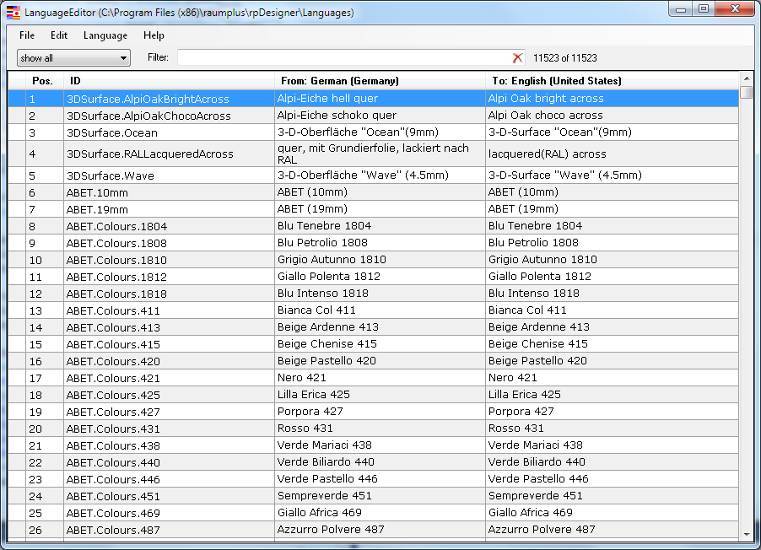
When you start the program, you will see the program window that looks like this (Figure 1). If it is the first time you start it, you probably have to open the language data of rpDesigner. You can do this with File > Open folder… and select the Languages folder of your rpDesigner-Installation.
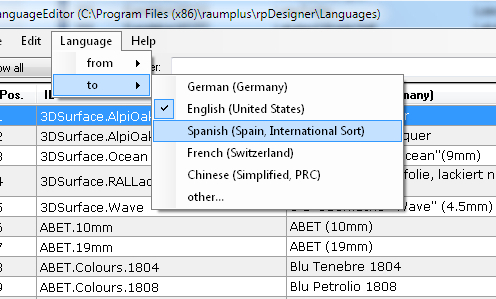
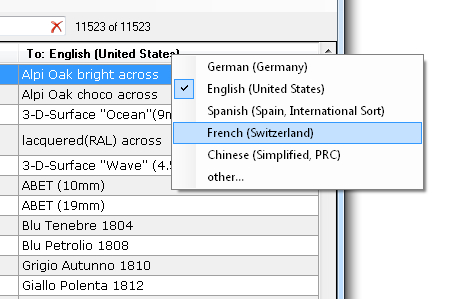
The second task you might want to accomplish, is selecting the languages you want to translate from and into. One way is to select them through menu Language > From respectively Language > To (see Figure 2). Alternatively you can right-click on the particular column (see figure 3).
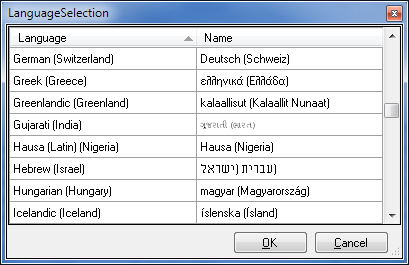
With the entry Language > To > other… you can open a dialog to choose a language that has not been translated for yet (see figure 4).
Finding the way
To stay on top of things the program includes some helping functions (see figure 5). Entries in the target language that are outdated or not translated at all are marked with yellow. Entries which have been edited but are unsaved, receive an icon in the left most column.
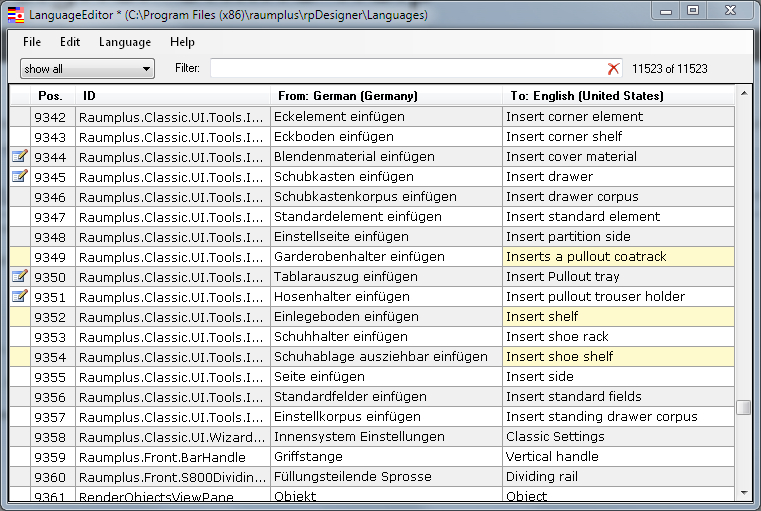
Additional to the visual cues, it is possible filter the list for specific entries. Instead of show all you can select show unprocessed only so only the entries to be treated are shown (yellow marked). With the input field Filter you can filter the list, so only the entries are shown, that contain the letter sequence you entered. Further you can sort the list for- and backwards by left-clicking on column headers.
Making a change
You can edit the entries of the column To: directly in the list. Just double-click or press the Enter key when the intended entry is selected, enter your text and press Enter again to preceed to the next entry. In case of an multi-line text, you can produce a linebreak with Shift-Enter.
For convenience, the program contains several additional functions. These functions can be applied to several selected entries at once and are accessible via main menu under Edit or the context menu of the list (see figures 6 and 7).
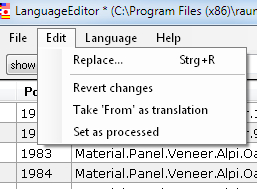
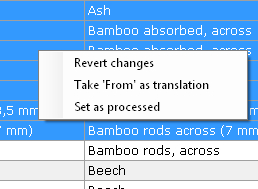
With Replace… you can replace specific text contained in the selected entries with another one. Revert changes lets you convert changed entries (the ones with icons) back to their initial text. The next function Take ‘From’ as translation simply takes the text from the column To: and inserts it into From:. In case some entries are marked as unprocessed but they do not need to be edited, you can use Set as processed to fix it.
Coming to an end
It is, of course, important that you save your work regularly. Therefore just use File > Save or the corresponding keyboard shortcut Ctrl-S. Maybe you do not have the necessary writing permission to save under the program folder, where rpDesigner is installed. Then you can save the language data into another directory with File > Save to… . You can choose a directory and the program will create a new folder Languages there containing the language files.
The final step in your work on a translation is to send us the changed files, so we can integrate it into the next release of rpDesigner. Simply click on the menu entry File > Send to developer…. LanguageEditor then will take care of packing the files into an archive, and start your standard mailing program with it as an attachment. Then you just have to enter your mail address as the sender, maybe write some notes on your changes, and press the send button.
If the mailing process does not work for whatever reason, you can send us the files by hand. You have to pack the whole folder Languages into a Zip-Archive and attach it to a mail that you send to: software@raumplus.de