
When should a online update be carried out?
The rpDesigner will point out if there is available already a new version of the software. The online update window will be shown as pop-up on the bottom right.
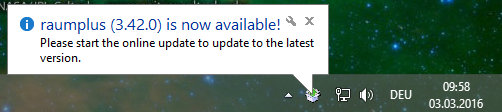
How to execute the update
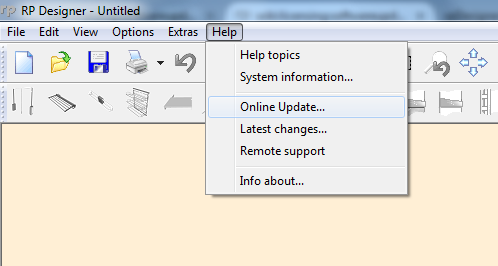
| Start the online update Select the menu item “Help” → “Online Update…” to run the update process. |
 |
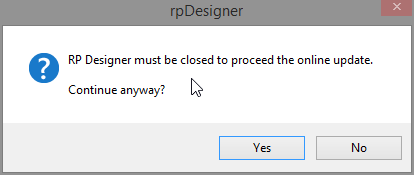
| Close rpDesigner To start and access the online update the rpDesigner needs to be closed. Please save your current project and close the rpDesigner. Verify the user access control question with a click on “Yes”. |
 |
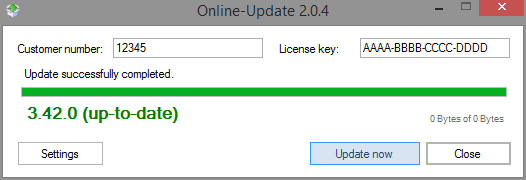
| Execute the online update Enter your customer ID and your Licence key in the the check boxes and select afterwards “Update now”. The update program downloads now all required files and updates the rpDesigner. |
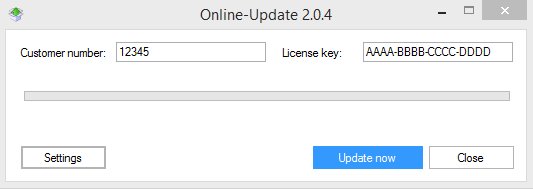 |
| Here it is also able to change on settings the online update interval. We recommend every 15 minutes! | 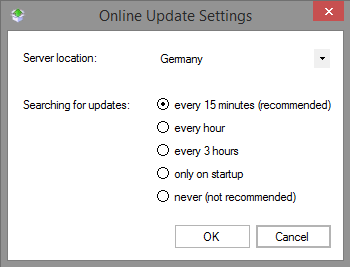 |
| Update successfully completed When the update successfully completed there will be pop up a confirmation window which you will close with a click on “Close”. |
 |
Updating via online update