
The Console
The console is a prombt bar tool for editing elements with the keyboard. Working with the console is more precisely then working with the mouse. The console can be used in both views of the rpDesinger. It was designed for moving and aligning elements in front systems and interior systems.
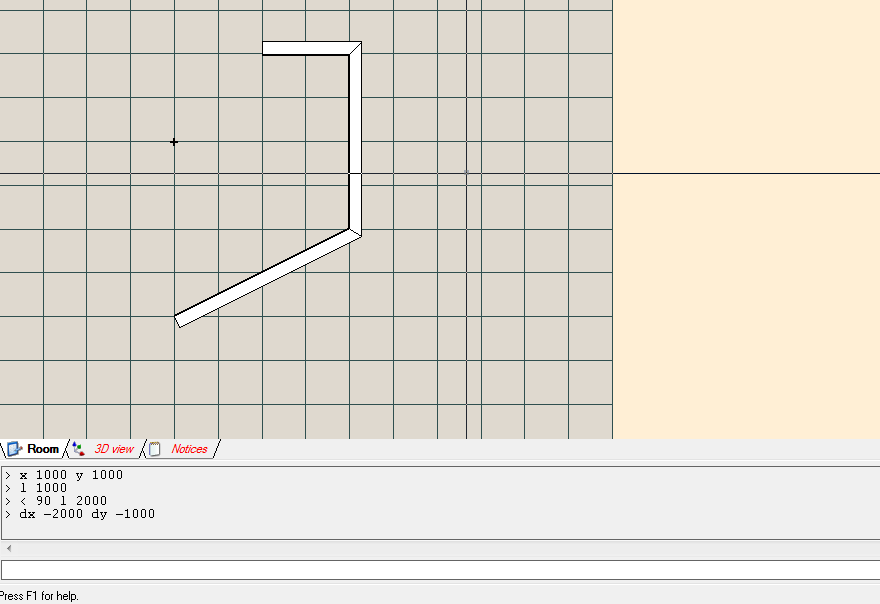
There are certain and specific commands to manage the input at the prompt bar. According to the current process there are offered a range of different commands. So if you enable, for example the insert a wall tool, there are offered a few more certain commands like x, y, dx, dy.
Enable of the console
-
With the button ‘Hide or show console’
 you can enable or disable the promt bar of the console.
 -
With the hot key Ctrl+P you can show up the console, if it`s not enabled. The input focus here will be the prompt bar and therefore you can enter your commands directly.
Following operations can be performed by the console:
– Moving details or systems
– Available commands depend on the currently selected tool

Command syntax of the console
The syntax of the commands generally looks like:
command [params]
The command is here the name of the command and params represent the parameter. Not every command needs a parameter. Please attend that there must be at least one blank space between the command and the parameter!
The command will be executed if you press the return button. You can run simultaneously several commands by seperating them with a semicolon (;).
Auto completion of console
If you press the tab key all available commands will be shown in the readout box.
When you already start to enter some commands, for example: (‘cl’ for ‘clear’) and press the tab key, than all entered commands will be show up, which saarts with the same character.
But if there is only one command which starts with the same character of already entered command, than it will be auto complete and shown up in the prompt bar when you press the tab key.
The console as calculator
Simple math operations can be done with the console. For example:
(324 + 689) / 2
enter in the prompt bar and press return button, the readout box will show up ‘506.5’.
The result of operations can be used as parameter for commands. For example you can enter following command to place a spread exactly centred between two sites. There is assumed that one site is 656mm wide and the other is 1343mm wide. Additionally the spread which you like to move is selected with the ‘move element’ tool.
r (656+1343)*0.5
Following math functions are available for the calculator:
-
sin: Sine
-
cos: Cosine
-
tan: Tangent
-
atan: Arcus tangent
-
sqrt: Quadrature
The parameter of the functions are in between the braces.
Example:
sin(45)

sqrt(5*5)
Prompt bar commands for the console
Specific commands for the console
The command help:
By entering the command help there will be shown all currently available commands.
The command clear: The command clear will clear the readout box.
The commandl toolinfo: The command toolinfo shows up informations of the selected tool. Please attend that at least one tool must be enabled. Otherwise there can not be shoen information. Instead of it there will be shown a error message.
The command end:
The command end will disable the selected tool. This command is equivalent to the escape button.